
You can launch a useful towing business website with one good page. Start with your dispatch number, the places you actually serve, the jobs you take, and one clear photo of your equipment. Put those facts where someone can find them on a phone. Give fleet managers and other nonurgent callers a different next step.
This guide gives you a page order, sample copy you can adapt, and a short test for launch day. If you already have a site and want to spot what needs fixing, use the towing business website checklist.
1. Give the first screen one job
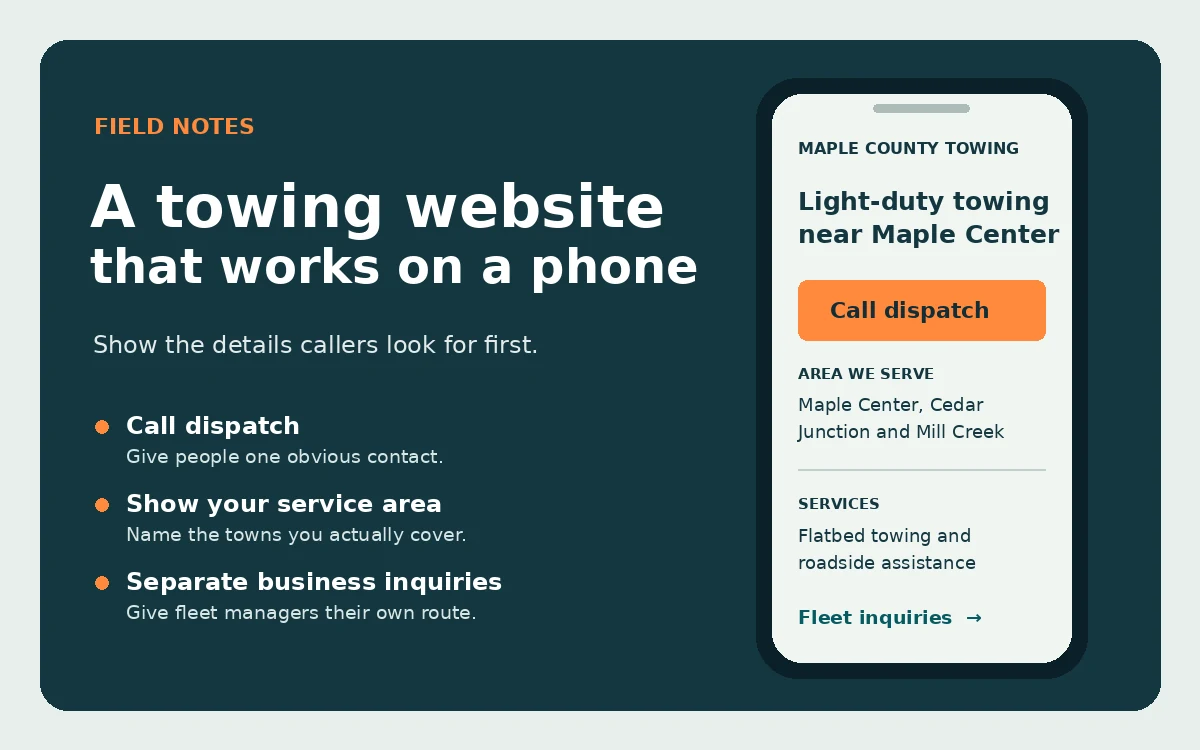
The first screen should answer three questions: Can this company help around here? Does it handle my kind of vehicle? How do I reach someone? Start with your business name, a plain headline, and a dispatch button. Put the same number in text nearby so someone can read it or copy it. If the company only answers at certain hours, put those hours next to the number. Use “24-hour dispatch” only when you have that coverage.
Ask dispatch what information people usually have to hunt for. One shop may get repeated calls about whether it has a flatbed. Another may get calls from towns outside its range. Use those conversations to decide what belongs in the first few lines. Save the company history and the rest of the photos for farther down the page.
2. Write your homepage using this example
Here is sample copy for a fictional operator. Replace the bracketed details with facts the crew can confirm. Headline: “Light-duty towing in [Town] and nearby communities.” Opening: “Call [dispatch number] for light-duty towing, jump-starts, and tire changes around [Town A], [Town B], and [Town C]. Dispatch will confirm whether we can take your call and what information we’ll need.” Button label: “Call dispatch.” Under the button, list your dispatch hours and use a short sentence for anything callers need to know after hours.
Add a second line for customers planning ahead. For instance: “Managing a fleet? Ask about planned transport or account setup.” Point that line to a short inquiry form or an office email people actually check. If you take fleet work, the fleet account setup guide shows what you’ll need to discuss once the inquiry comes in.
3. Put the dispatch number to work
When you add the button in a site editor, set its link to a telephone address. For example, a fictional U.S. number displayed as (202) 555-0142 uses tel:+12025550142 as the link. Use your own public dispatch number when you publish. A phone should open its dialer and show the correct number. If you have a separate office or billing line, label it and keep it below the primary dispatch number.
You can add the same dispatch action near the bottom for people who read the whole page. Use the same wording and number in both spots. Ask a coworker to find the number on a phone with no coaching. If they have to open the menu, scroll past a slideshow, or zoom in, move the button or simplify the top of the page.
4. Show where you work and what you handle
Use the town or region your crew actually covers. Mention nearby communities, a familiar corridor, or a county when that helps readers place you. A short sentence such as “Based near [Town], serving [Town A] and [Town B]. Call dispatch to confirm availability outside that area” is easier to understand than a paragraph with every city in the state. If you have a public pickup or office location, label it separately from the service area.
Give real services their own short lines. “Light-duty flatbed towing for passenger vehicles” tells a reader more than “all your towing needs.” If you handle commercial fleets, specialty vehicles, or scheduled transport, list those only when your team agrees you can offer them. Let dispatch confirm vehicle details and availability on each call.
A one-page towing website layout
| Page area | What to put there | What to verify |
|---|---|---|
| Top of the page | Business name, town, and Call dispatch button | Public number and hours match the dispatcher’s instructions |
| Services | Short list of jobs and vehicle types | Descriptions match what the crew actually handles |
| Coverage | Base town and regularly served communities | Coverage and office address are clearly distinguished |
| Equipment photo | A current image with useful alt text | The business has permission to publish it |
| Business inquiries | Fleet or planned work contact | Messages reach the person responsible |
5. Pick photos that answer a question
Start with one well-lit photo that shows a truck your company uses. Add another only if it explains something different, such as what the flatbed looks like or which entrance customers use at a public office. Use photos you own or have permission to use. Review the shot for customer faces, plates, work orders, and other details you don’t intend to publish.
Use a descriptive filename before the upload. For example, “maple-county-towing-flatbed-side-view.jpg” is easier to recognize in a media library than “IMG_1932.jpg.” Write alt text that describes the actual shot, such as “White flatbed tow truck parked outside the company shop.” When a photo confirms a capability, write a short caption about what the image shows and let the service description carry the details.
6. Build the page and give it a clear search title
You can build this page in the website editor you already use. If you’re starting from scratch, pick a template with room for a headline, a button, and plain text. Add the services and area before customizing colors. Give the page a search title such as “Light-Duty Towing in [Town, State] | [Business Name].” Write a description that tells readers which actual jobs the page covers and how they can contact dispatch. Read it as a customer would.
A one-page site can start with sections for dispatch, services, coverage, and business inquiries. Add separate pages when you can explain distinct services in more depth. Use Google’s SEO Starter Guide to check how visitors and search engines can find the page. Once the site is public, compare the name, number, service area, and hours with your Google Business Profile and directory listing.
7. Test the page with a real phone before sharing it
Open the public address on a phone that hasn’t logged into your editor. Look for the headline and dispatch action before scrolling. Tap the phone button and check the number in the dialer. Open the site from a second device or mobile network and check that it uses HTTPS. Read the services page from top to bottom once, including the footer. Verify that the numbers and hours match everywhere.
Check the fleet or office contact route separately. If you use a form, send a clearly marked test that your own team expects, then confirm who received it. Tell readers when they can expect a reply and keep urgent requests on the dispatch route. Give someone on staff responsibility for updating the page when the phone number, hours, or coverage changes.
8. Keep the domain and updates under your control
Use a business-owned email address for the domain and website accounts. Record where the domain renews, who can update the website, how to reach the host, and where you keep your page copy and photos. If a contractor sets it up, ask how your team will make a small change, such as posting holiday dispatch hours, without rebuilding the page. Request a handoff that explains where the settings live.
Save the public address and send it to someone who did not work on the site. Give them two tasks: find out if you serve a nearby town, then find whom to contact about a planned fleet move. Ask where they looked first. Fix the first place they got stuck before worrying about new design features. For the first month, ask dispatch which website questions callers still have. Those questions are a better guide to your next edit than an extra row of service icons.
Give the website a permanent place in the business. Add the correct public URL to the company’s own listings, office materials, and invoices where it belongs. When hours or coverage change, update the website and the listings people use to find you. Keep a note of when the change was made so the next person checking the page knows whether the information is current.
9. Practice before putting your business name on it
If you want to try the editor first, build one sample page before paying for a permanent address or publishing your actual dispatch information. Use sample copy and a photograph you have permission to share. Put the main call button at the top, then ask someone to preview it on their phone and tell you what the company does and where it works. Use what they say to improve your first public page.
I run DIY Websites HQ, and I may earn a commission if you upgrade through a Wealthy Affiliate link on that guide. You can follow my free SiteRubix WordPress walkthrough to practice building the page. Confirm the current hosting and domain costs when you’re ready to put your business on its own address.
Common questions
Does my towing business need more than one page?
One page is enough to publish the core information first. Add pages when you have something distinct to explain, such as your commercial transportation service or fleet accounts. Give each new page its own useful content and a clear contact route.
Should I put a form or a phone number at the top?
Use the route you actually monitor for live requests. A tap-to-call button usually makes sense when dispatch takes calls. Give fleet inquiries and planned work a form or email on the same page and set a clear reply expectation.